
The guide below is designed to assist you in connecting your inverter to your home’s WiFi network so that you can access monitoring features, it is applicable to all WiFi-enabled Huawei inverters.
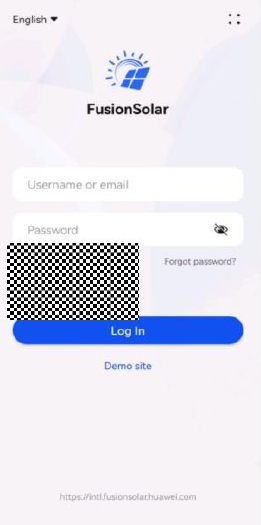
1. Begin by downloading the FusionSolar app, this can be downloaded from the Apple App store or if you have an Android device you can follow the link below. For all steps to come you will need access to your inverter and a WiFi-enabled device (such as a smartphone or tablet) with the FusionHome app installed.
2. Disconnect Cellular data, WLAN and Bluetooth on your phone.
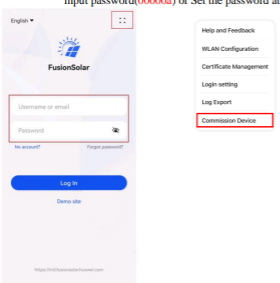
3. Open Fusion Solar app and from the menu select "Device Commissioning" >> "Connect" and then scan the QR code on the RIGHT-HAND panel of the inverter, and then login as "user" and input the password (00000a) or Set the password at the first login.
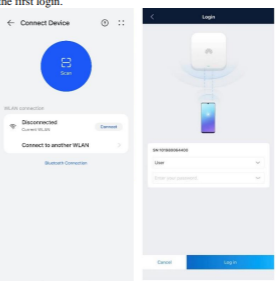
Note; If the QR code of the inverter scanning fails, please restart the inverter. Please turn off AC and DC switch. After all the LED indicators' status are off, turn on DC and AC switches.
** Please note that if the user password of 00000a does not work - try '0000000a' or 'Solar123' or 'Inverter123' instead **
4. After you've logged in, choose "..." from the top right corner, then select "Settings" >> "Router Connection Settings" and then select your WiFi network, input your WiFi password and click "connect"
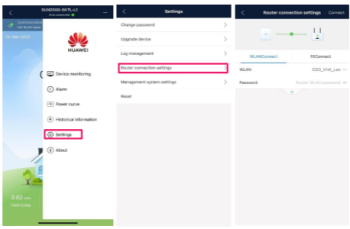
5. Please select "Management System Settings" and then select "Domain name", enter the domain name and click "Confirm".
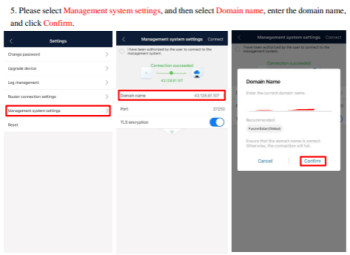
Note: Domain name
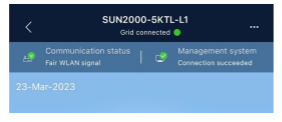
Note: Domain name
If the above steps have not worked, you can attempt the following, then go back through the above steps.
- Turn off the inverter’s AC isolator
- Turn off the inverter’s DC isolator
- Turn off WiFi modem for 10-20 seconds and then turn it back on
- Turn on the inverter’s DC isolator
- Turn on the inverter’s AC isolator
- Let it be for 15 minutes
